Set up this Android device once, then Shawn will be able to help with it securely when needed. You do not need to understand the technical commands—the page gives you exactly what to tap and paste.
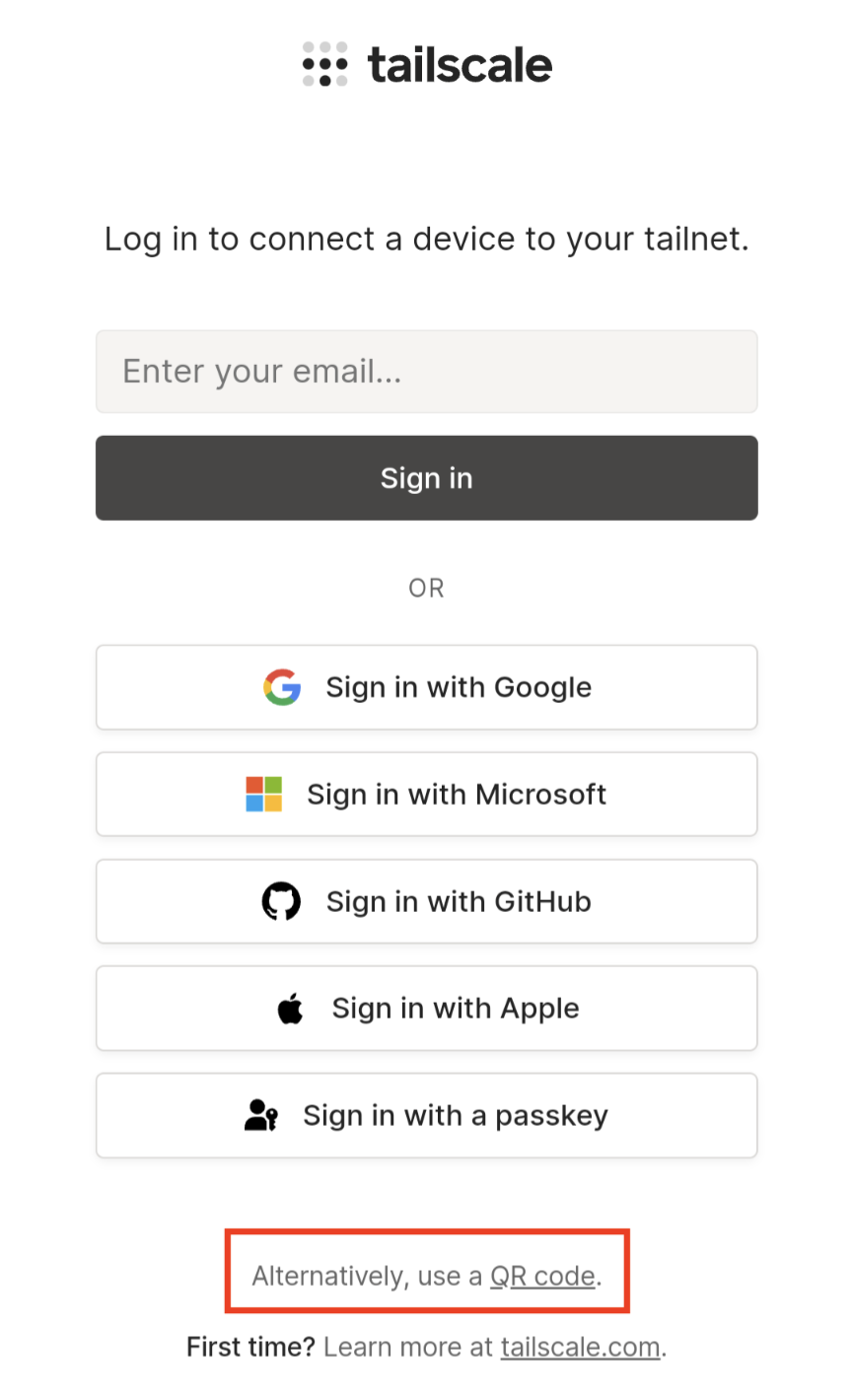
Install Tailscale from Google Play. On its login page, choose the QR-code option. Leave that code on this device while Shawn scans it with a separate trusted phone.
Look at the very bottom of the Tailscale login page.
1
On this device open Tailscale and start login.
2
Tap the underlined QR code link shown in the red box.
3
Shawn uses another trusted phone to scan the code and approve this device.
Two devices are easiest: the code stays visible here while Shawn scans it. If Shawn is not beside you, take a screenshot of the real QR code and send the picture to him on WhatsApp. He can open the picture and scan it; if it has expired, make a fresh code and send that one.
Official Tailscale login example
Automatic isolation: New phones can be reached by trusted computers, but cannot initiate connections to other tailnet devices.
02
Terminal
Install Termux
Install the Google Play version shown below. It requires Android 11 or newer, and its restart support is already built into the main app—there is no separate Termux:Boot app to install.
Send Shawn the username: when the command finishes, find the line beneath TERMUX USERNAME:. It will look like u0_a109, but it is different on each installation. Send that exact line to Shawn on WhatsApp.
04
Phone settings
Allow background access
Android may stop Tailscale or Termux to save power. Set both apps to Unrestricted so Shawn can reach the device when help is needed.
This part must be done on the phone. Shawn will handle restart automation later after he connects.
Finished: Send Shawn the Termux username from Step 3 and tell him both battery settings are Unrestricted. He can find the new device in Tailscale and take it from there.
Ready when help is needed
One device. Four steps. No password left behind.
Shawn can securely connect from an approved computer to help with this device. The private key stays on newhorizons and its Proton Drive backup; only the harmless public key is placed here.
Also planned
Laptops are next.
This same page will grow to include Windows and other laptop setup. For now, the Android steps above are complete.